ISO Mount XP: A Complete Guide for Windows XP Users
Learn how to use iso mount xp on Windows XP. This guide covers everything you need to know to open and mount ISO files on older Windows systems.
You've found an old Dell Dimension in a storage room, and it still boots into Windows XP. The machine contains archived installers, tax records, or engineering schematics, but the backup folder is full of .iso files. Double-clicking one doesn't open it as a virtual disc because Windows XP never included native ISO mounting.
That's the practical meaning of iso mount xp. You need a separate virtual-drive utility, the correct legacy installer, and enough permission to install its driver. There's also a modern search-intent collision: Vizcraft's ISO Mapper is a floor-plan rendering tool, not a Windows XP disc-image utility. The two products share terminology but solve completely different problems.
Table of Contents
- Why ISO Mount XP Is Still a Real Question
- What an ISO File Is and What Mounting Means
- Mounting an ISO on Windows XP Step by Step
- Comparing XP-Compatible ISO Mounter Tools
- ISO Mount XP Is Not the Same as ISO Mapper
- What Vizcraft's ISO Mapper Actually Does
- Choosing the Right Tool for the Right Job
- Troubleshooting ISO Mount Problems on XP
- Quick Reference for ISO Mount and ISO Mapper
- Frequently Asked Questions
- Why didn't Windows XP include native ISO mounting?
- Does built-in ISO mounting exist on later Windows versions?
- Where should I download Virtual CloneDrive or WinCDEmu?
- Does Magic Disc or DAEMON Tools Lite still support XP?
- How can I check an ISO before mounting it?
- Is ISO Mapper related to Windows ISO mounting?
Why ISO Mount XP Is Still a Real Question
A technician reopening an XP workstation may still need to read an ISO from an archived installer or recovery disc. Windows XP has no built-in ISO mounting, so double-clicking the file does not create a usable optical drive. On XP, Vista, and Windows 7, users generally installed third-party virtual-drive software or Microsoft's separate Virtual CD-ROM Control Panel, as described in this history of ISO handling in Windows.
An ISO can sit on the hard disk while remaining a complete disc image. Applications expecting a CD or DVD drive need a virtual-drive driver to expose its folders, boot structure, or installer files through a drive letter. Copying the ISO alone does not provide that behavior. Burning it creates a separate maintenance burden because it requires writable media and a functioning optical drive.
Practical rule: On Windows XP, assume an ISO needs a virtual-drive driver unless you have confirmed that another installed application handles the image.
Identify the required outcome before choosing software. A virtual CD or DVD drive under My Computer calls for an XP-compatible utility, with attention to driver installation rights and operating-system support. A rendered floor plan belongs to Vizcraft ISO Mapper, a separate product with no connection to Windows or optical-disc images.
That distinction prevents a wrong tool choice on a legacy machine. ISO mount XP concerns virtual optical-drive access. Vizcraft ISO Mapper concerns floor-plan rendering, so the two workflows require different software and different setup decisions.
What an ISO File Is and What Mounting Means
An ISO file is a disc image. It contains the files and disc structure captured from an optical CD or DVD, including the filesystem information that tells an operating system how the disc should be read. That structure can include boot information, metadata, folders, and installer files.
Mounting means presenting that image to Windows as if a physical disc had been inserted. The mounter creates a virtual CD or DVD drive, assigns it a drive letter, and makes the image available through Explorer. The files stay inside the image, rather than being unpacked into an ordinary folder.
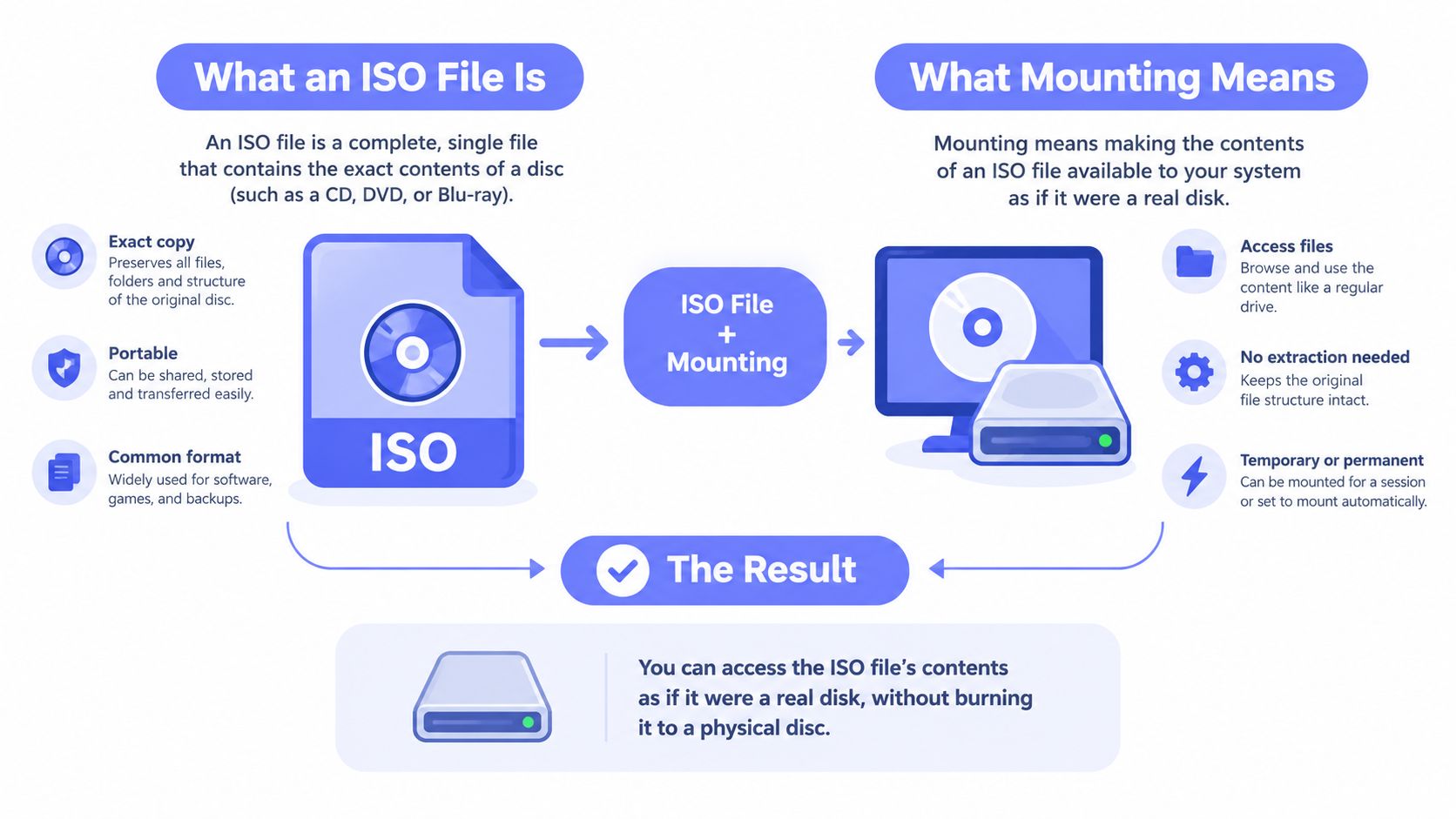
You can take two alternative approaches. Burning the image to a physical disc preserves the original optical-media behavior, but it requires working media and a functioning writer. Extracting the ISO exposes individual files, but it may not preserve the way a bootable disc or installer expects to find its contents.
A virtual drive is usually the cleaner XP-era workflow because it avoids physical media and lets you test the image directly. It also gives you a useful diagnostic signal: if the virtual disc appears in Explorer but the installer fails, the mounting step worked and the problem is likely inside the image or the application.
Mounting an ISO on Windows XP Step by Step
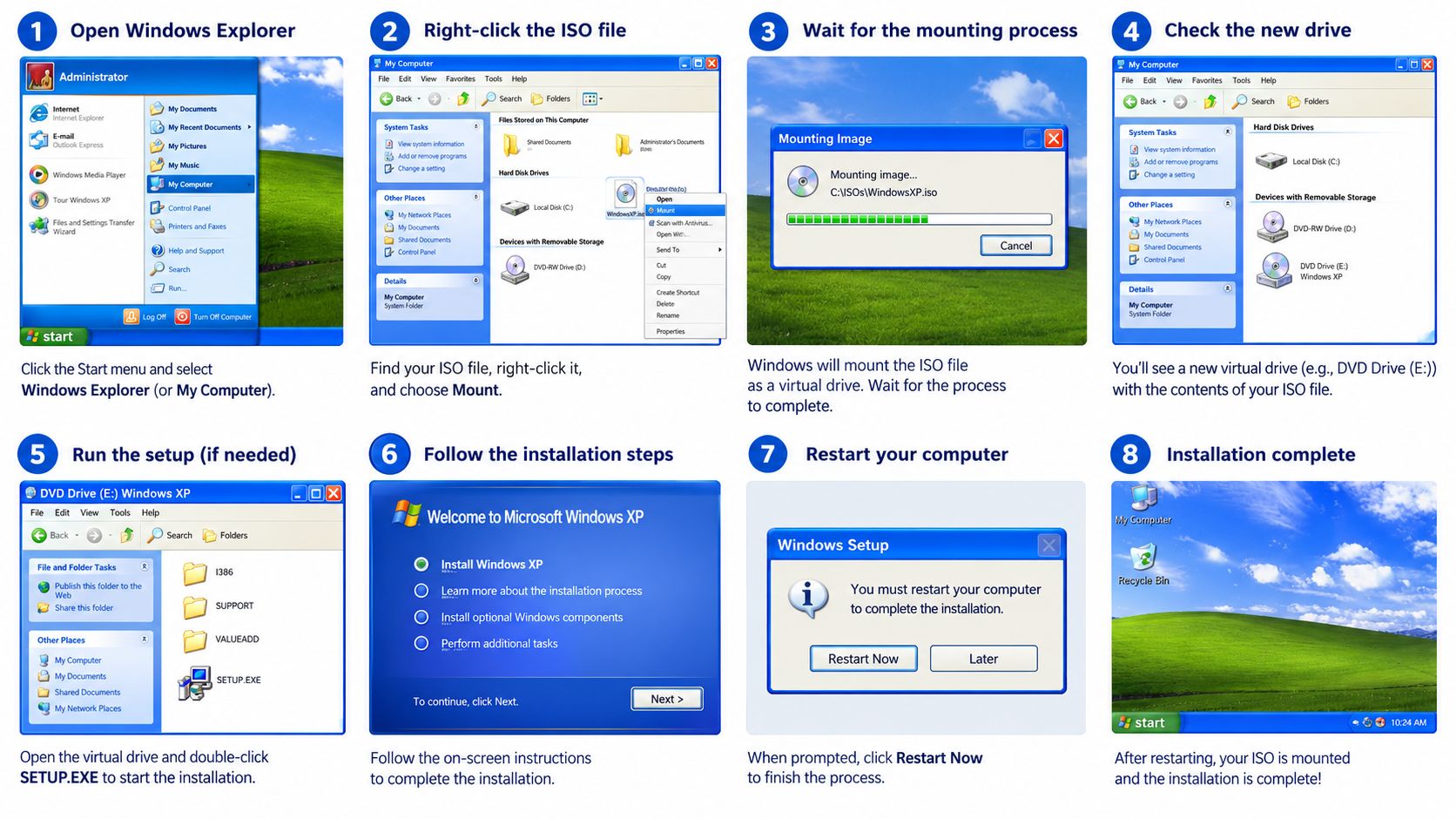
A legacy installer may still depend on Windows XP, while the ISO sits on a modern storage device. The practical solution is to create a virtual optical drive, then verify that XP can read the image and launch its intended program. The Windows XP mounting overview also explains why separate virtual-drive software is needed.
Use this sequence:
- Back up the image first. Preserve the original
.iso, especially if it contains business software, recovery media, or an old installer. - Install an XP-compatible virtual-drive utility. Use an account permitted to install system drivers. Accept the restart prompt if the installer displays one.
- Restart XP. The virtual-drive driver may not load completely until Windows has reloaded.
- Open the ISO from Explorer. Locate the file, choose the utility's context-menu command, and assign or select the new virtual drive letter.
- Check My Computer. Look for a CD or DVD drive representing the mounted image. Open it and confirm that the expected folders and installer files appear.
- Test the intended use. Launch the installer or inspect the disc contents. A drive letter confirms only that XP created the virtual drive, not that the image is readable or suitable for the application.
Microsoft's Virtual CD-ROM Control Panel can handle a straightforward ISO 9660 disc, but its support is limited. Images using UDF, bootable behavior, or more advanced virtual-drive controls may require an XP-compatible third-party emulator. Check the release against the installation's service pack and system architecture before installing.
Comparing XP-Compatible ISO Mounter Tools
Tool choice is less about a modern feature list and more about finding a release whose driver still works with your exact XP installation. Confirm whether the download supports your XP service-pack level and whether it matches 32-bit or 64-bit XP before installing.
| Tool | XP Support | License | Install Type | Formats Beyond ISO | Notable Trade-off |
|---|---|---|---|---|---|
| Microsoft Virtual CD-ROM Control Panel | Intended for XP-era use | Free | Driver-based installation | Limited | Simple, but ISO 9660 support is restrictive |
| Virtual CloneDrive | Use an XP-era release | Freeware | Installed virtual drive | Depends on release | Low-friction option for plain ISO files |
| Gizmo Drive | Verify the archived release | Free or release-dependent | Installed utility | Depends on release | Broader functions may add legacy-driver complexity |
| WinCDEmu | Verify XP compatibility before downloading | Open source | Installed emulator | Depends on release | Explorer-based workflow, but current support must be checked |
| MagicISO | Verify the legacy version | Commercial | Installed application | Broader image support | Useful when image handling and burning features matter |
| PowerISO | Verify the legacy version | Commercial | Installed application | Broader image support | More capable, but paid software is unnecessary for a single plain ISO |
WinCDEmu's official description explains the basic model clearly. It emulates a CD, DVD, or Blu-ray drive and lets users mount disc images from Windows Explorer rather than extracting them first.
Virtual CloneDrive is usually the sensible first attempt for a plain ISO, provided you can locate a release that supports XP. MagicISO or PowerISO make more sense when you need additional image formats or disc-authoring functions. Don't install several emulators at once. Their drivers can compete for drive letters and create confusing failures.
For a broader product comparison from the other meaning of ISO Mapper, use Vizcraft's comparison page, but don't treat that page as an XP utility catalogue.
ISO Mount XP Is Not the Same as ISO Mapper
The phrase ISO mount XP can lead to two unrelated search paths. One concerns mounting optical-disc images on Windows XP. The other concerns ISO Mapper, a Vizcraft floor-plan rendering product.
ISO Mapper isn't a Windows XP installer, a virtual CD drive, or an ISO reader. It doesn't mount .iso disc images. It belongs to the architectural-visualization category and addresses the problem of turning floor-plan material into visual output.
Three checks identify the right path quickly:
- Audience: IT generalists and support technicians usually need a virtual-drive utility. Realtors, architects, interior designers, and floor-plan vendors may be researching a rendering workflow.
- Deliverable: XP mounting should produce a drive letter such as a virtual CD or DVD. Floor-plan software should produce a visual plan or architectural render.
- Input file: A disc workflow starts with
.iso. A floor-plan workflow may involve drawings, PDFs, images, or other plan assets.
A virtual optical-drive emulator and a floor-plan renderer don't overlap just because both use the word “ISO.”
If your screen shows a Windows XP desktop and your file ends in .iso, stay with the legacy mounter workflow. If your goal is a client-ready isometric plan, don't search for an XP driver. Continue with the product's actual floor-plan use case instead.
What Vizcraft's ISO Mapper Actually Does
A design team can start with a floor plan and need a client-ready visual rather than a virtual DVD drive. Vizcraft's ISO Mapper addresses that floor-plan workflow by converting source material into 2D and 3D isometric visualizations. Vizcraft says the tool can return a 3D isometric after processing a source image; see its floor-plan product information.
The billing model uses credits. Each floor-plan conversion consumes exactly one credit. New accounts receive 2 free credits on signup, with no credit card required, according to the published trial flow. Paid use is based on render volume rather than unlimited rendering.
| Plan | Monthly price | Included renders | Approximate cost per render |
|---|---|---|---|
| Starter | $19/month | 25 renders | About $0.76 |
| Pro | $49/month | 100 renders | About $0.49 |
| Studio | $99/month | 250 renders | About $0.40 |
These figures come from Vizcraft's published pricing, which also lists one-time credit packs starting at $7. The practical distinction is clear: an XP mounter exposes disc contents through a virtual optical drive, while ISO Mapper uses credits to create floor-plan visuals.
ISO Mapper generates presentation images from floor-plan images. It does not mount disc images or promise editable DWG, DXF, or GLB exports. Use CAD or modeling software when the deliverable requires those formats.
Choosing the Right Tool for the Right Job
Use the file and the expected output as your decision rule.
If the file is a disc image and the computer runs Windows XP, install an XP-compatible virtual-drive tool such as an appropriate release of Virtual CloneDrive. The result you want is a CD or DVD drive in Explorer, followed by readable disc contents or a working installer.
If the requested deliverable is a 2D or 3D floor plan, you've landed in the other meaning of ISO Mapper. An optical-disc emulator can't create architectural visuals, and a floor-plan renderer can't turn a Windows XP workstation into a virtual DVD drive.
The two outputs serve different purposes: a floor-plan visualization is a presentation image, while a disc mounter exposes files through a virtual optical drive.
For architectural visualization comparisons, use Vizcraft's AI architectural visualization guide rather than evaluating disc utilities against rendering products. Vizcraft's own competitor material names InteriorAI, RoomGPT, ArchiVinci, mnml.ai, Decor8, ReimagineHome, Collov, and PromeAI as competing products in that rendering category.
Troubleshooting ISO Mount Problems on XP
XP failures usually come from permissions, driver conflicts, or version mismatch rather than from the ISO itself.
Start with permissions
Installing a virtual-drive emulator requires system-level driver access. If the installer fails immediately, restart and confirm that the account belongs to the Administrators group. XP Home has a different administration experience from XP Professional, so use an account with the necessary local rights and avoid assuming that a standard user can install the driver.
Remove competing virtual drives
Two emulators can try to control similar virtual hardware or claim the same drive letter. Uninstall the older emulator, restart XP, and check My Computer before installing the replacement. A clean driver state is usually more useful than repeatedly rerunning the same installer.
Match the release to XP
A Vista or Windows 7-era mounter may expect UAC behavior, newer kernel drivers, or runtime components that XP doesn't provide. Choose an XP-era release instead, and match the installer to the operating system's architecture. If the application reports a missing Visual C++ component, install the matching redistributable for that release before trying again.
Separate mounting from media failure
If the virtual drive appears but the image won't open, test another known-good ISO. If one image fails and another mounts, investigate the image rather than reinstalling the emulator. For additional product-specific checks, consult the Vizcraft FAQ only when your question concerns the floor-plan product, not Windows XP driver repair.
Quick Reference for ISO Mount and ISO Mapper
| Need | Quick reference |
|---|---|
| Mount an ISO on XP | Install an XP-compatible Virtual CloneDrive release, restart, double-click the ISO or use the tool's Mount command, then browse the new drive letter |
| What the mounter creates | A virtual CD or DVD drive exposed in Explorer |
| If mounting fails | Check administrator rights, remove competing emulators, and use a release built for XP |
| ISO Mapper vendor | Vizcraft |
| ISO Mapper category | Floor-plan renderer |
| ISO Mapper billing | Credit-based, with one credit used per floor-plan conversion |
| ISO Mapper turnaround | About ten seconds per 3D isometric, according to Vizcraft |
| Floor-plan outputs | Isometric visualization images; not editable CAD or 3D model files |
The XP side uses a virtual-drive driver, often described in terms of virtual optical hardware or a SCSI-style miniport mechanism. The ISO Mapper side has no connection to that mechanism. For failure recovery, return to Troubleshooting ISO Mount Problems on XP, and for the architectural-rendering alternative list, review Vizcraft's competitor guide.
Frequently Asked Questions
Why didn't Windows XP include native ISO mounting?
Windows XP predates Microsoft's built-in ISO mounting workflow. XP users needed a separate virtual-drive utility or Microsoft's separately distributed Virtual CD-ROM Control Panel.
Does built-in ISO mounting exist on later Windows versions?
Microsoft added native ISO mounting in Windows 8. Later Windows releases usually let you right-click an ISO in File Explorer and select Mount.
Where should I download Virtual CloneDrive or WinCDEmu?
Use the publisher's official site or a reputable archive that identifies the release and confirms XP compatibility. The newest build may not support XP. Avoid unverified driver packages, especially on a machine holding important archives.
Does Magic Disc or DAEMON Tools Lite still support XP?
Support depends on the specific legacy release. Current versions may target newer Windows kernels, so check the operating-system requirements before downloading. An XP-era installer matters more than the product name alone.
How can I check an ISO before mounting it?
Compare the file with a checksum or hash supplied by the original publisher, when available. Confirm the download source, keep the original copy, and scan the file with security software that still supports your isolated XP environment. UAC-style prompt errors from Vista-era emulators require the troubleshooting steps for that specific tool.
Is ISO Mapper related to Windows ISO mounting?
No. ISO Mapper is Vizcraft's floor-plan visualization tool and does not mount .iso disc images. See https://vizcraft.ai/iso-mapper for details.
If you are working with a floor plan rather than a disc image, Vizcraft provides ISO Mapper for 2D and 3D isometric outputs through a credit-based workflow. You can try it with 2 free credits and no card required, then compare the output with the rendering deliverable you need.